


KBI 312215 - Implement Windows Integrated Authentication (WIA) Using IIS for Argent Omega
Version
Argent Omega 2.2A-2501-B and later
Date
Tuesday, January 21, 2025
Summary
Argent Omega service is a Kestrel web server that uses HTTP and port 6100 by default. When user browses the Argent Omega URL (http://<server>:6100), a login page is presented.
Users might want to implement Single Sign-On (SSO) in Windows network so that the current logon user will automatically login on Argent Omega. Windows Integration Authentication (WIA) is needed.
Argent Omega does provide a WIA Reverse Proxy that can be installed easily and mostly works out of box. Simply run SETUP.EXE and select to install Argent Web Reverse Proxy Server.
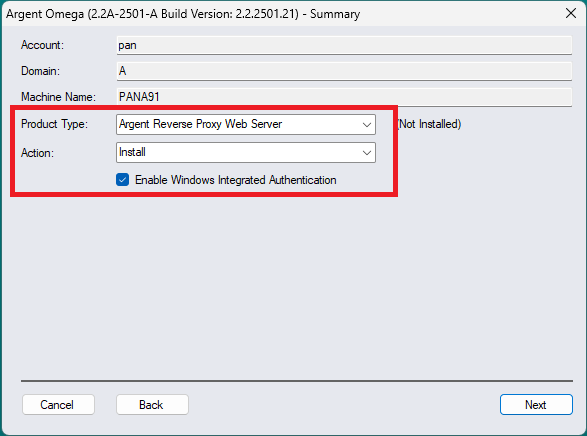
Argent Reverse Proxy Web Server (WIA) is also a Kestrel web server. Though it is generally safe to use in local network, a Kestrel web server is not as robust as full-blown IIS. Users might decide to use the industry-strength IIS instead.
To implement IIS based WIA reverse proxy requires the following manual steps.
- Download and install current version of .NET Core Hosting Bundle
- Extract \_ARGENT_OMEGA_INSTALL\OTHERS\ArgentOmegaIISProxy_bin.zip to C:\Argent\WIA.
- Start Internet Information Service (IIS) Manager.
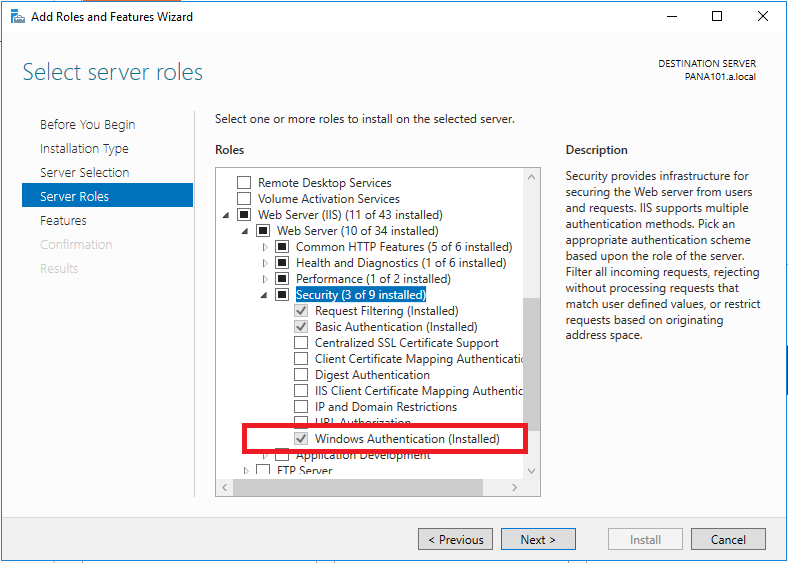
- Verify Windows Authentication is installed for IIS. If not, use Add Roles and Features in Server Manager to install the feature.
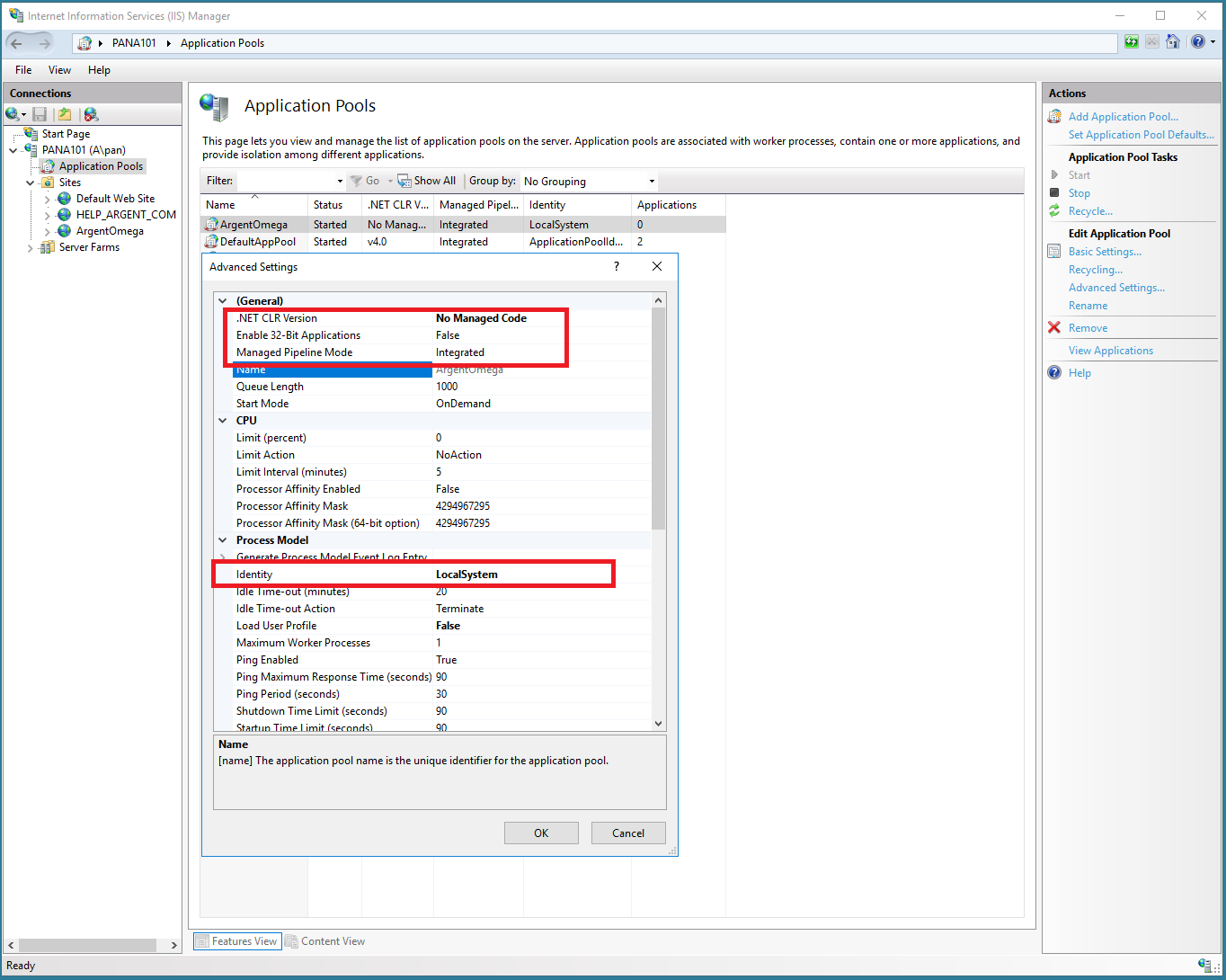
- Create Application ‘ArgentOmega’ in Application Pool. It must have following properties:
- .NET CLR Version – No Managed Code
- Enable 32-Bit Application – False
- Managed Pipeline Mode – Integrated
- Identity – Local System
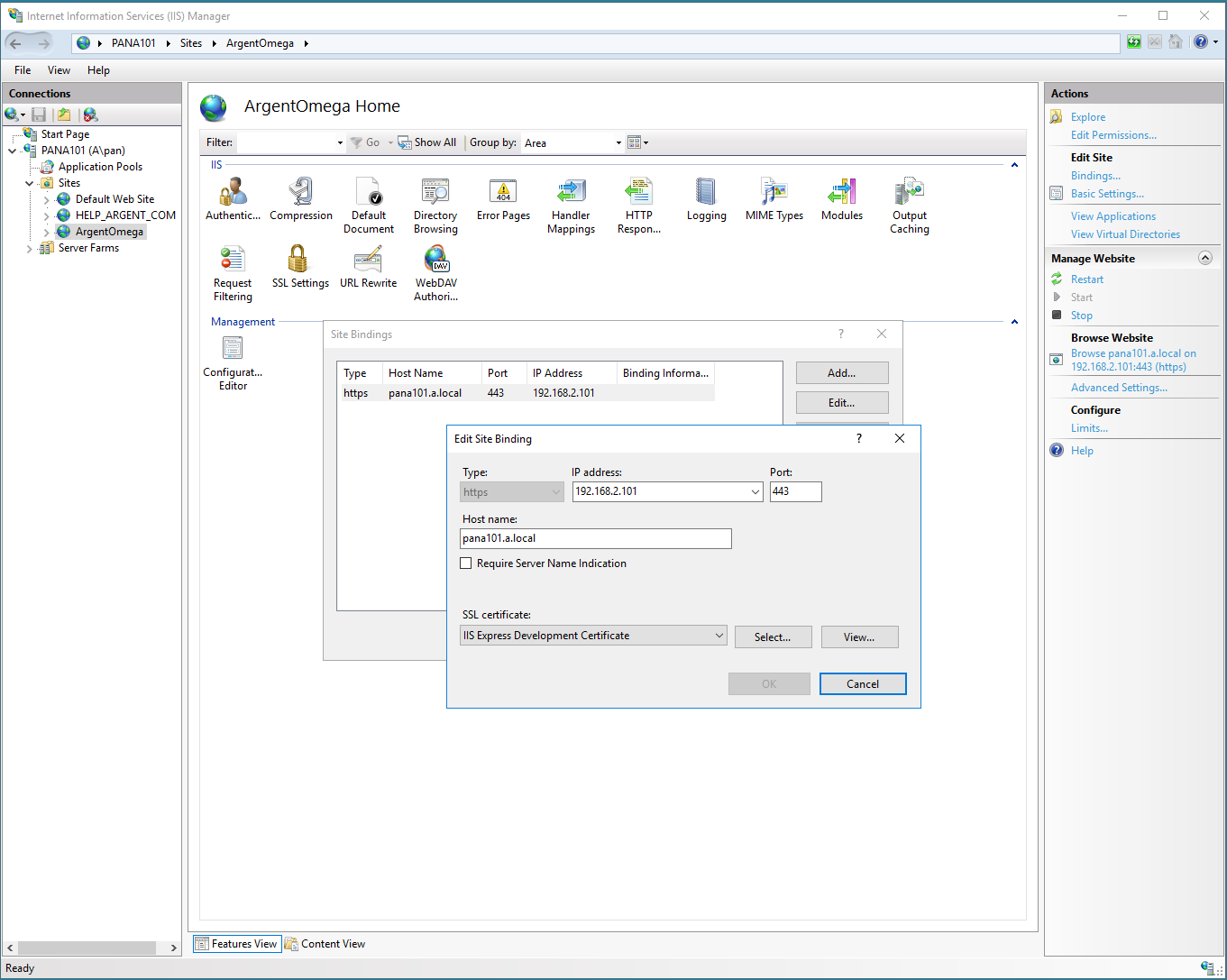
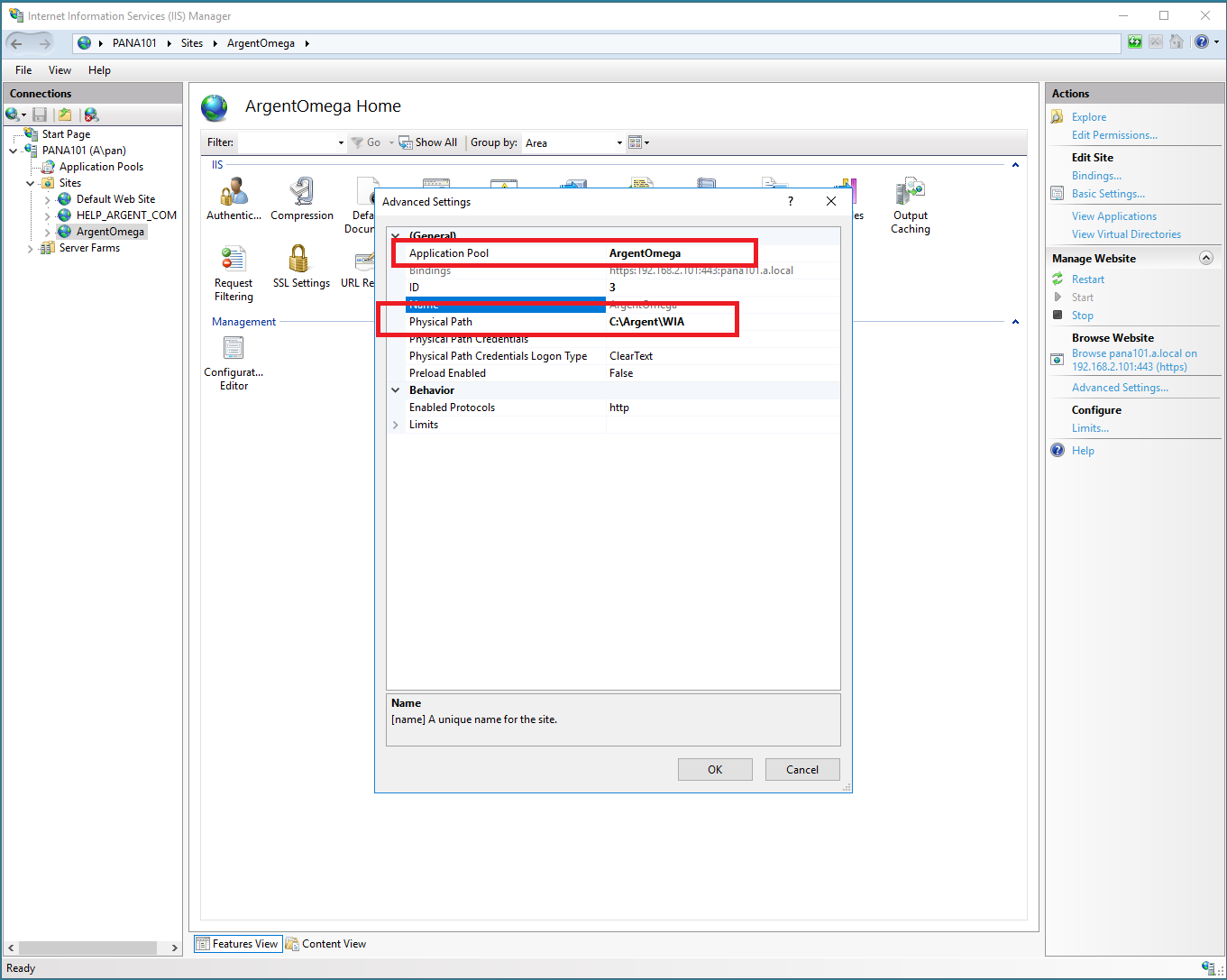
- Create Web Site ‘Argent Omega’ using application ‘ArgentOmega’ , HTTPS protocol with appropriate certificate applied. The physical path is C:\Argent\WIA.
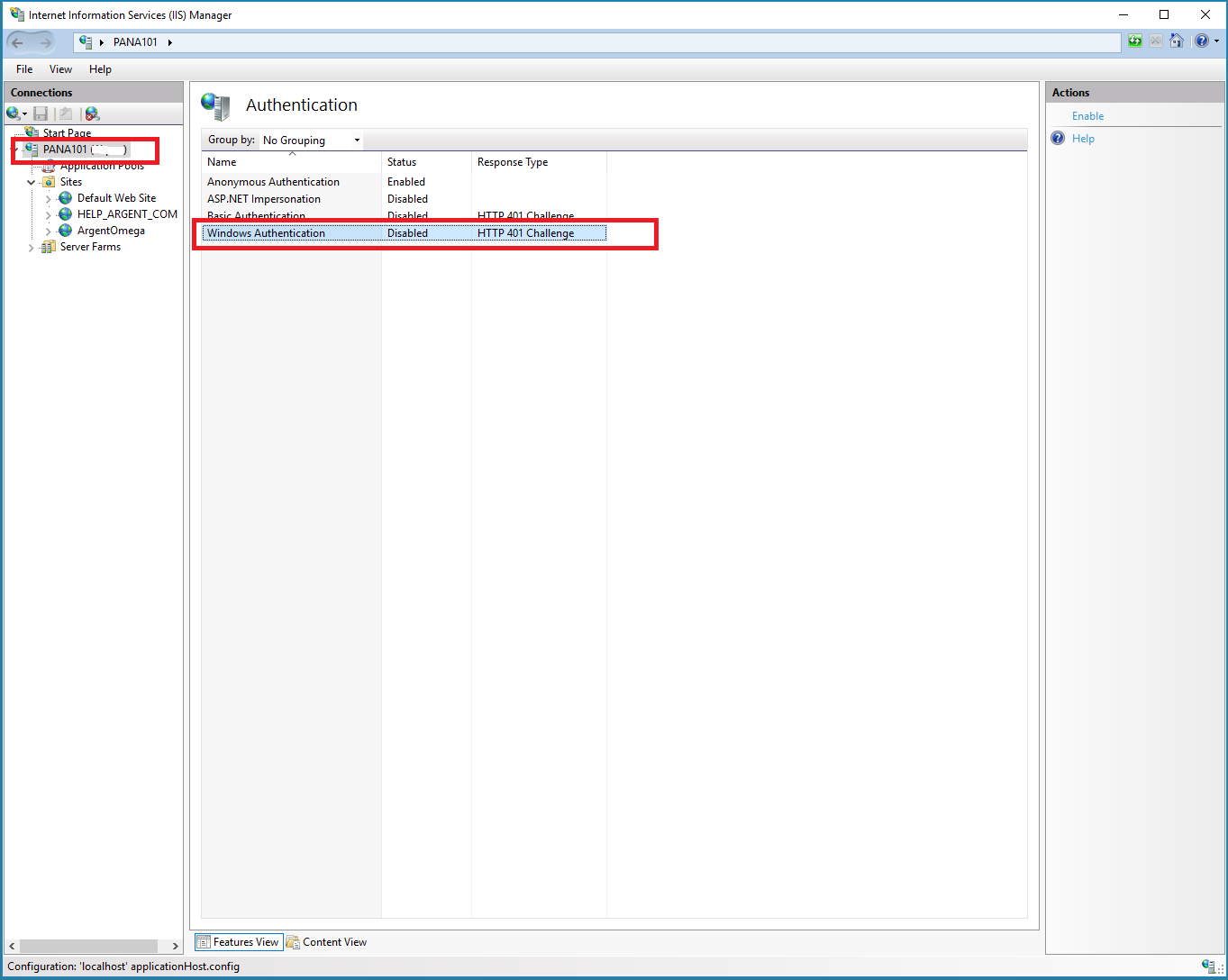
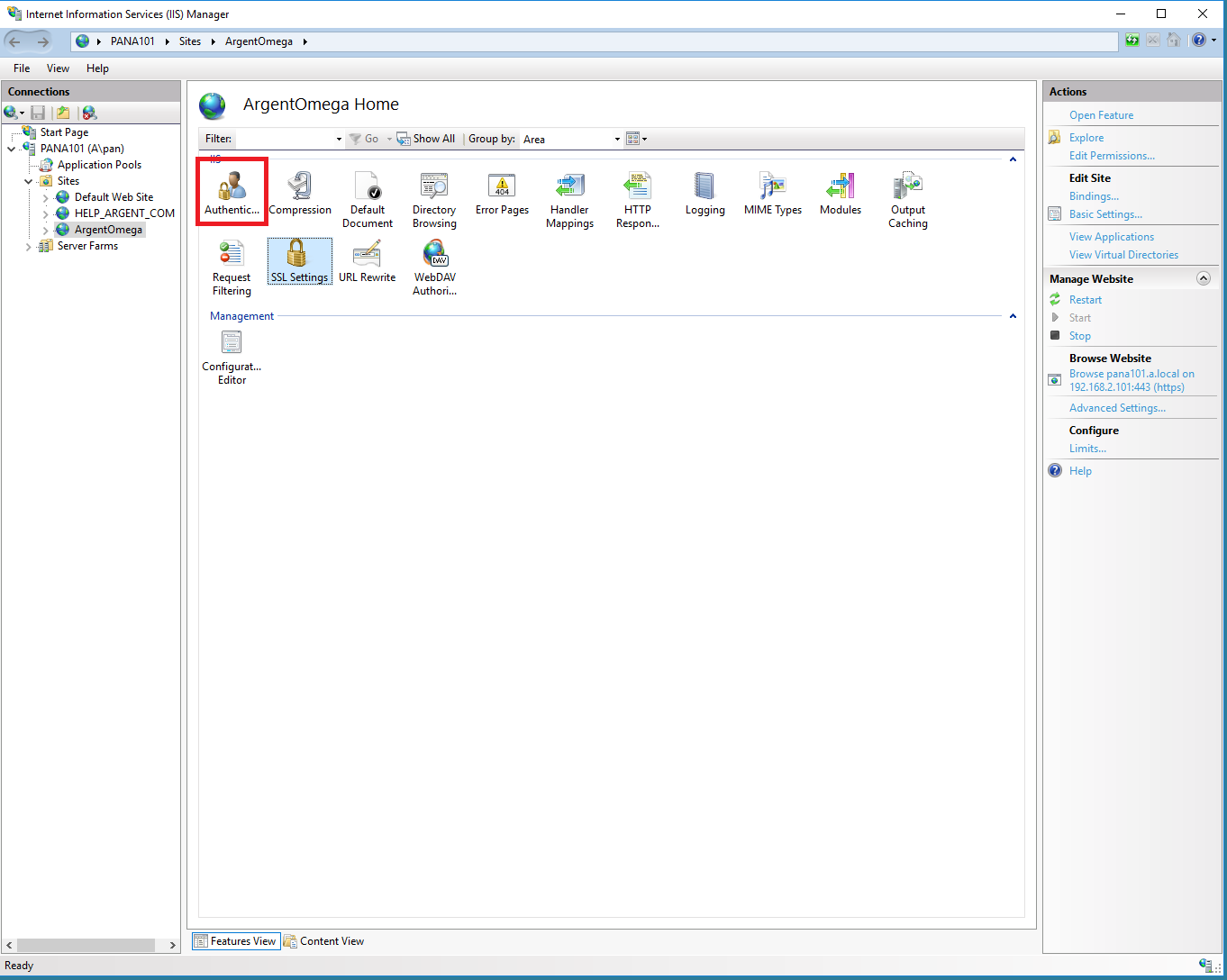
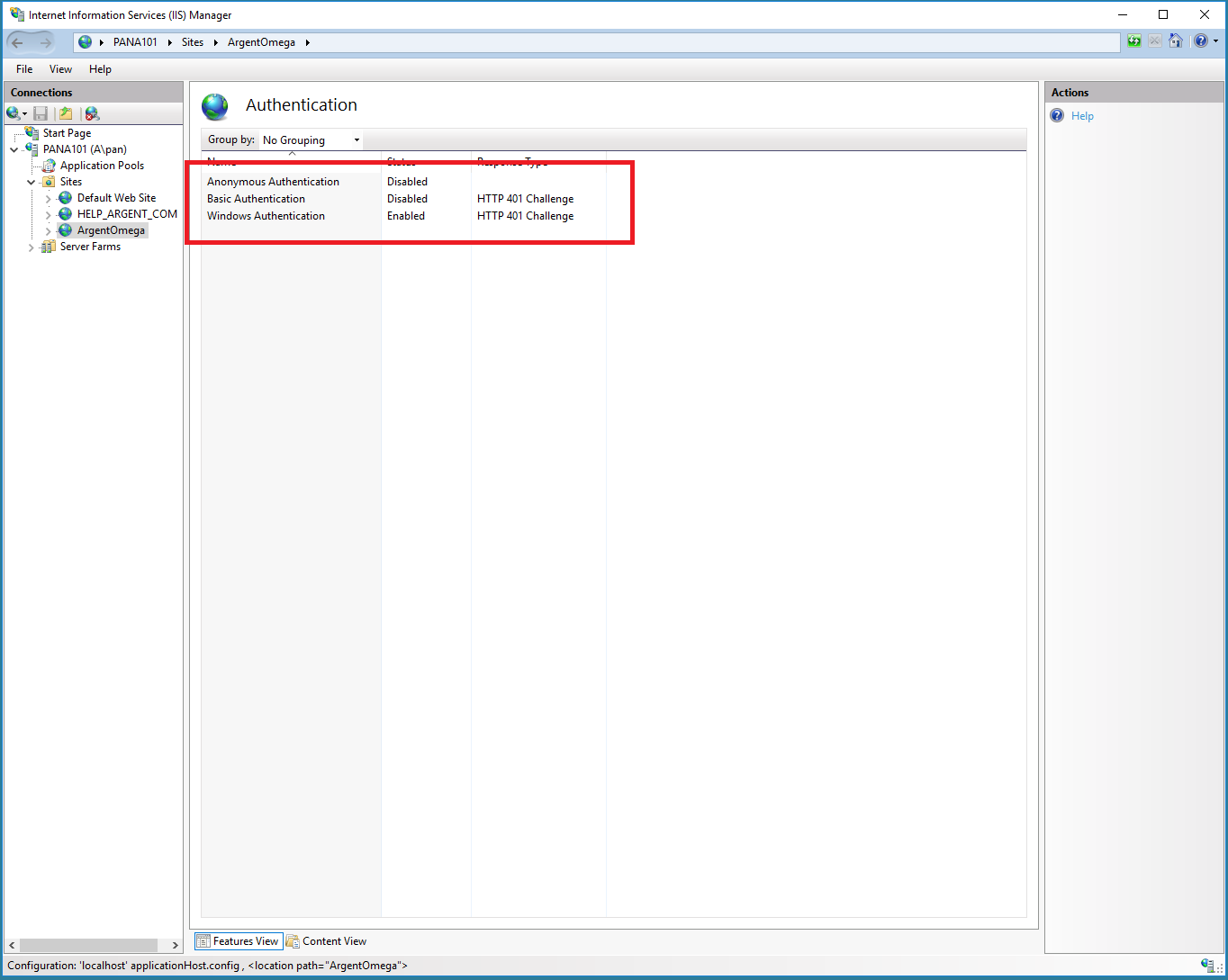
- Select Authentication module for site ‘ArgentOmega’, disable anonymous and enable Windows Integrated Authentication.
- If the IIS is dedicated to Argent Omega, simply restart the IIS service with the IIS manager by selecting the server’s name and click on Restart on the right panel.
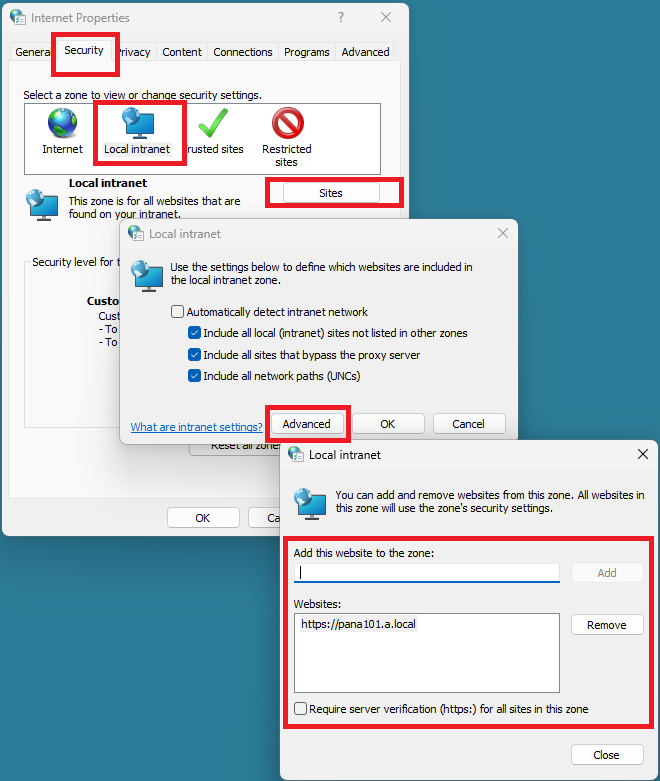
If the IIS is shared, restart site ‘Argent Omega’ and application ‘Argent Omega’ respectively. - On each machine that users browse Argent Omega site, the site must be added to Local intranet sites. To do so, start Internet Options on the client machine.
Important Note: Replace the sample URL with the correct site URL. - On Argent Omega Primary Generator machine, run following command:
ArgentOmegaCLI /wia /enable /proxy /Argent_Password:xxxx - Point your browser to Argent Omega site, it should automatically login with current user.
The feature has been implemented in Argent Omega 2.2A-2501-B .
Technical Background
N/A
Resolution
Upgrade to Argent Omega 2.2A-2501-B or later.